Start or open a library
Create a new library file, open one you already have, or import your catalog from Codexia. You choose where the file lives.
Libafile
Library checkout for any small library: classrooms, churches, clubs and other institutions. Open your file, lend your books, and Libafile keeps the record in that file.
Works best on a computer. Use it in your browser, or install it as a desktop app.
How it works
Create a new library file, open one you already have, or import your catalog from Codexia. You choose where the file lives.
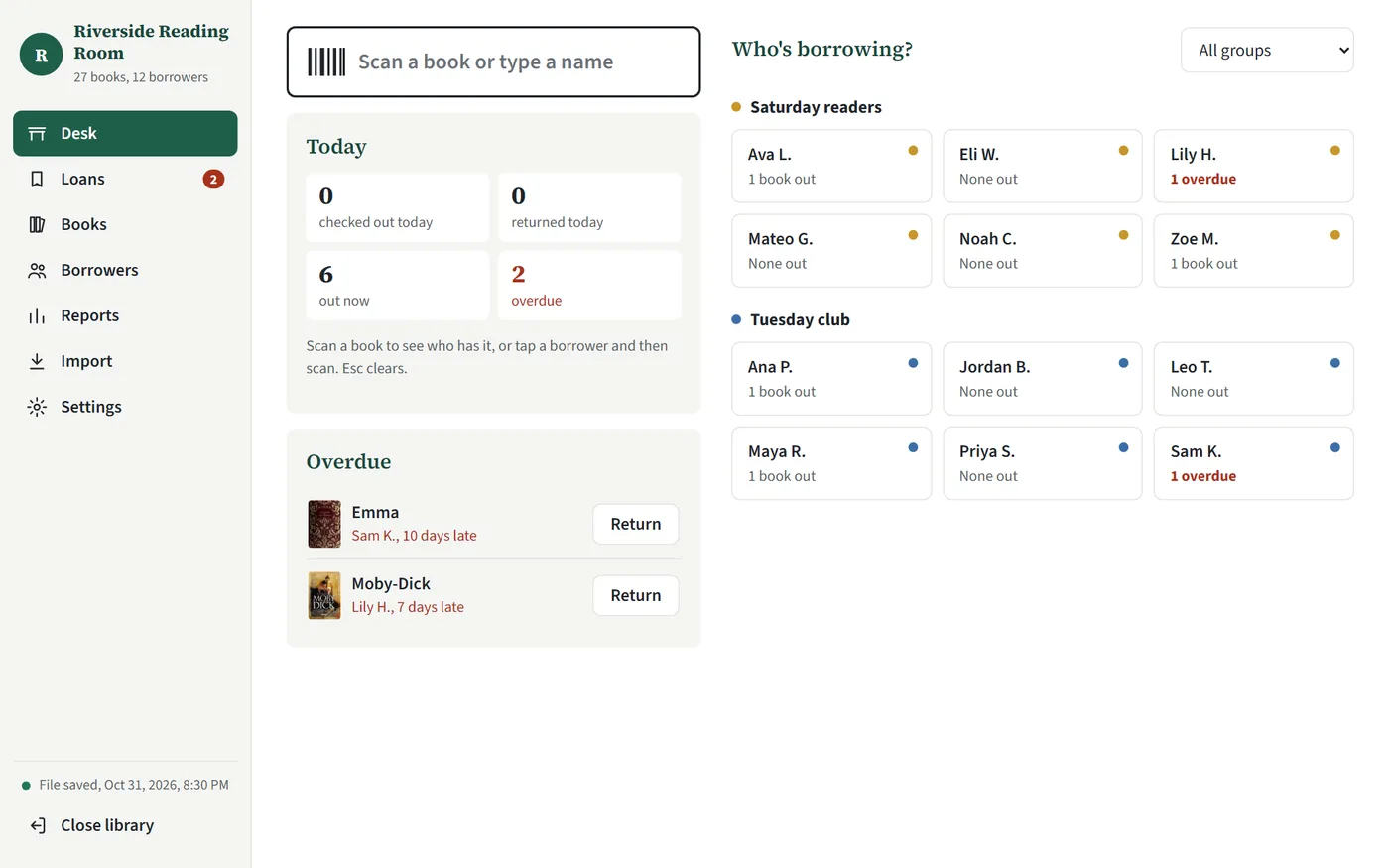
At the desk, scan or type a book, tap a borrower, and it's done. A Bluetooth scanner works too, since it types the ISBN for you.
In Chrome and Edge on a computer, and on Chromebooks, every change saves to your file about two seconds later. In Safari and Firefox, you download an updated copy by pressing Save file.
Inside the app
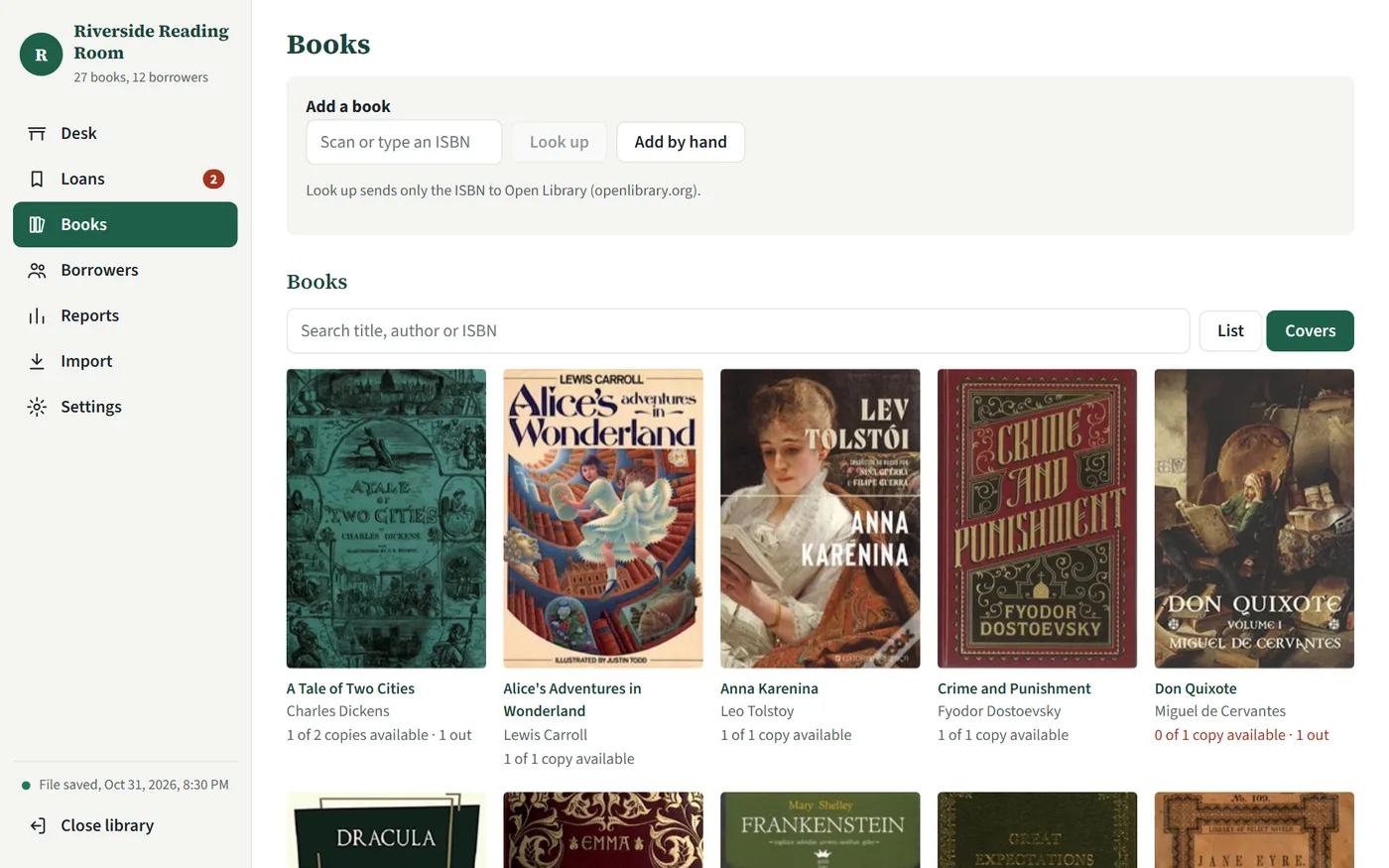
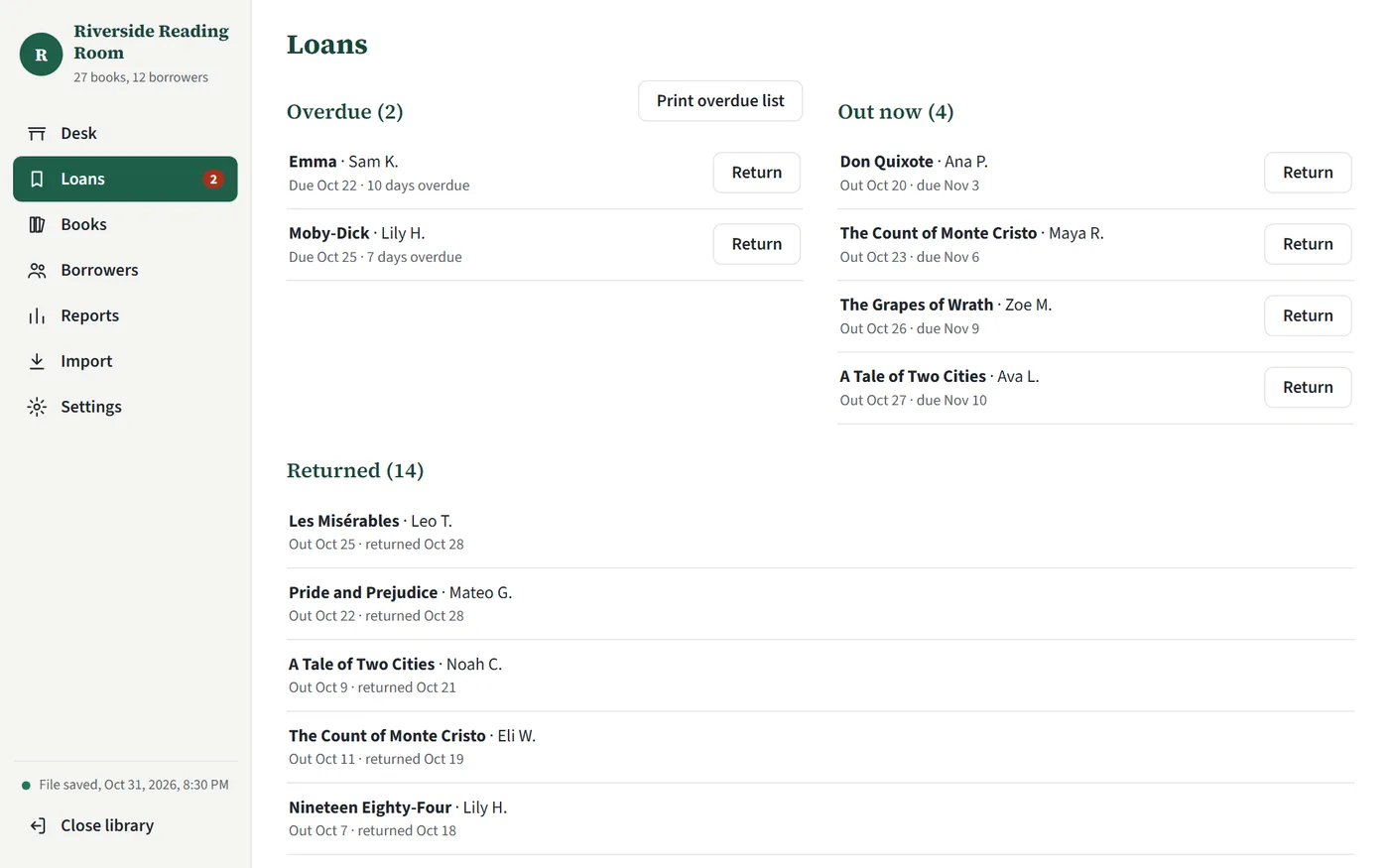
Swipe for more screens.
What it does
Scan a book to see who has it, or tap a borrower and then scan. Returns are one tap.
Set the loan length and the most books one person can hold. Libafile tracks what's late and prints the list.
Look up a book on Open Library, which receives the ISBN only, or type the details in yourself. Several copies of a title are fine.
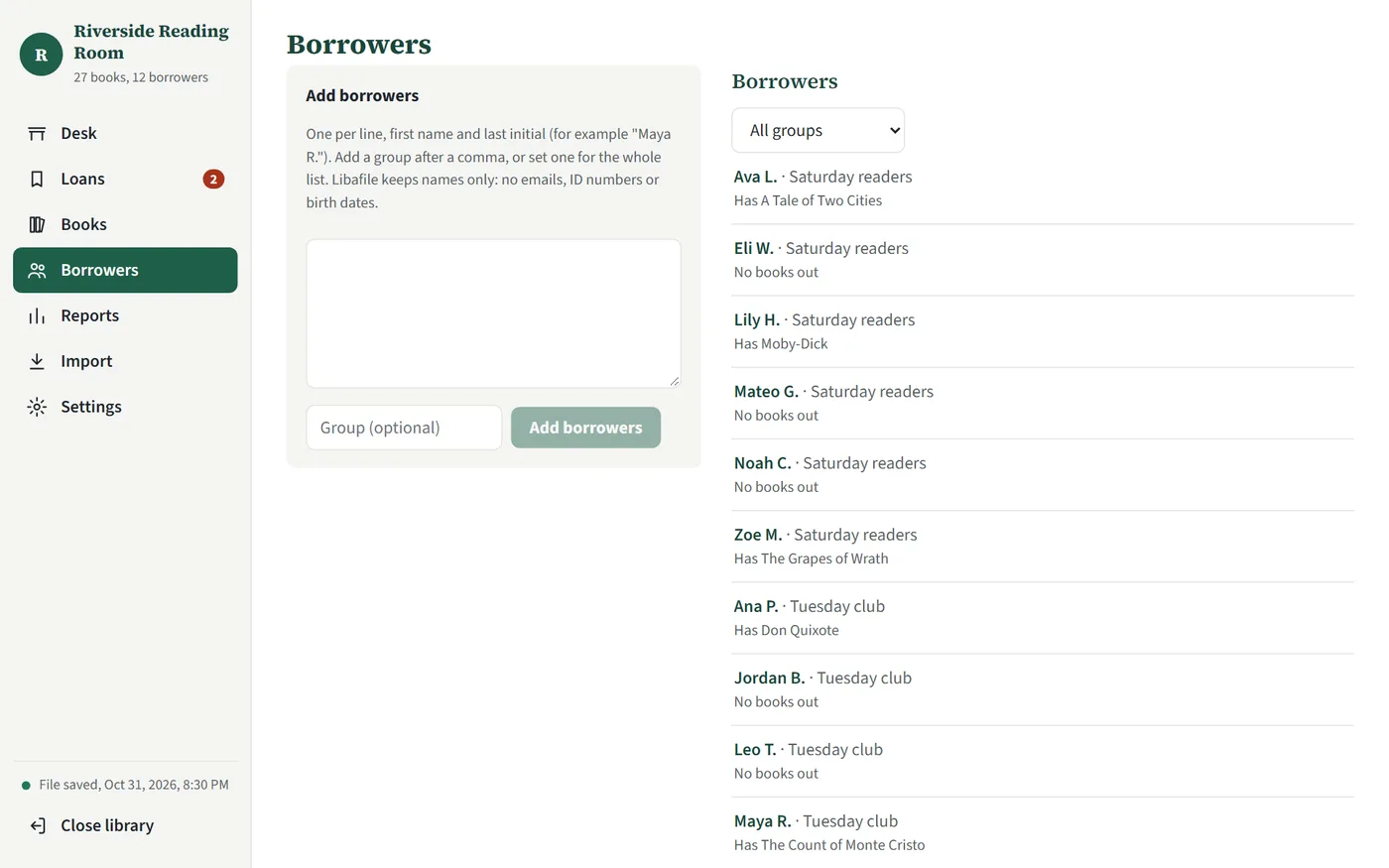
A borrower is a display name and an optional group. Entries that look like email addresses or ID numbers are refused.
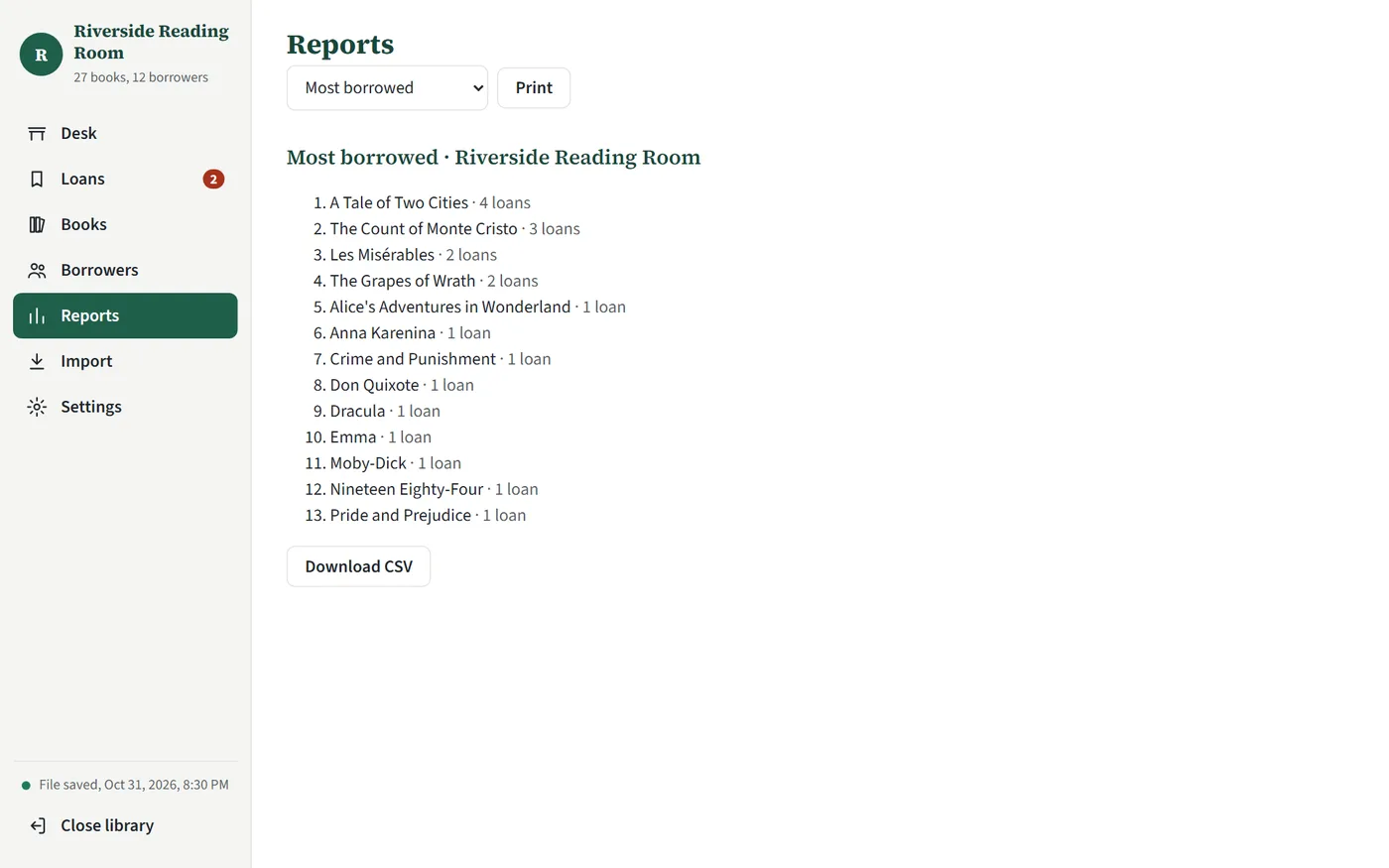
See your most borrowed books, then print the report or download it as a CSV.
Libafile opens with no connection once you've visited it, and you can install it on your computer to get its own icon and window.
Who it's for
Know who has which book, without putting names on someone else's server.
Run the lending shelf from one file that a volunteer can pick up next week.
Lend among members and sort them into groups, with no system to set up.
Keep a checkout record with no account and nothing held on an outside server.
Works with Codexia
Libafile imports Codexia exports.
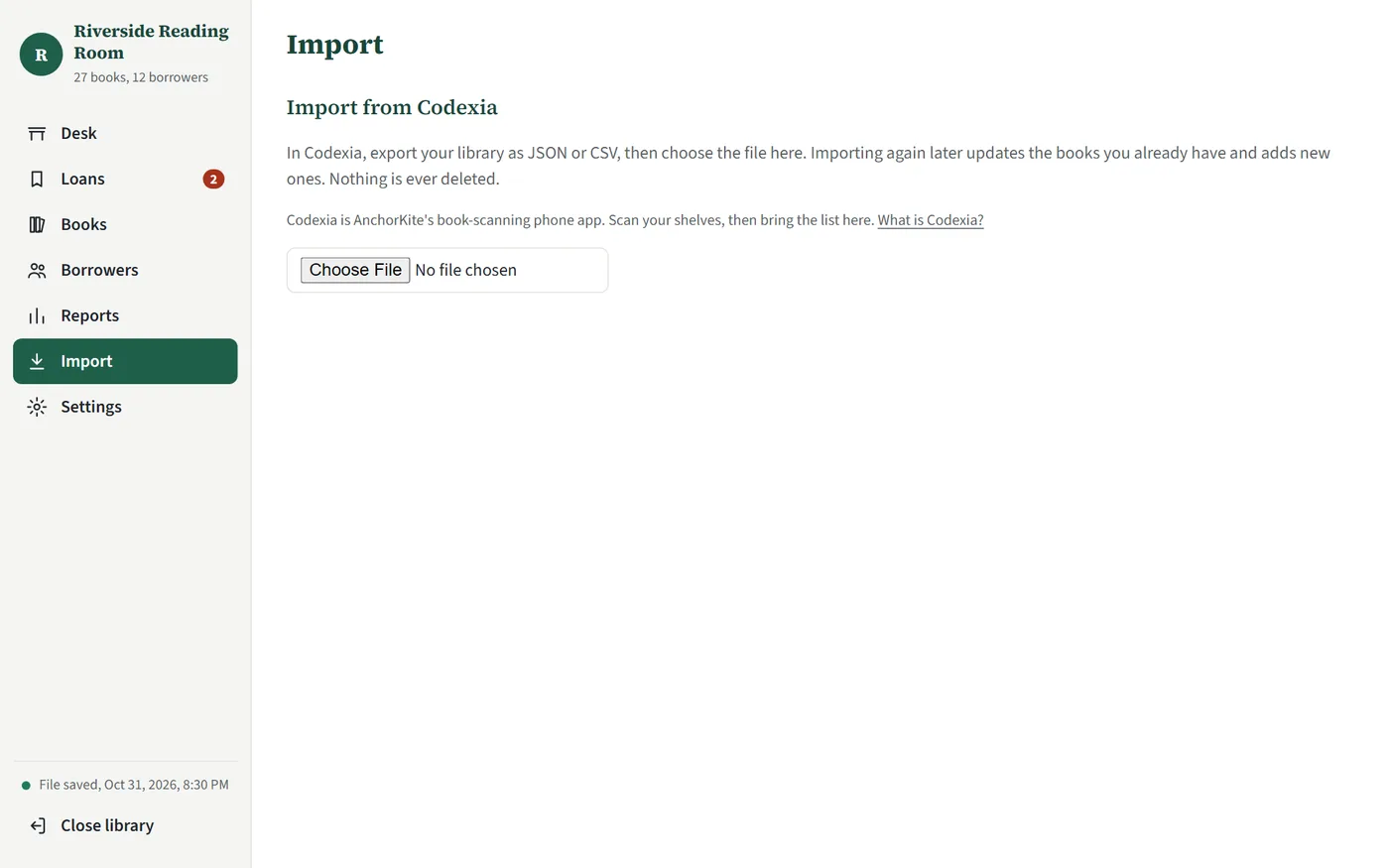
Codexia is AnchorKite's book-scanning phone app. Export your catalog from it as JSON or CSV, choose the file under Import in Libafile, and your books are ready to lend.
Importing again later updates the books you already have and adds new ones. Nothing is ever deleted. You don't need Codexia to use Libafile.
Saving
Libafile saves to your file by itself, about two seconds after each change. It can also keep a dated copy in a backup folder you choose.
These can't write back to a file. Your changes stay in the browser until you press Save file, which downloads an updated copy. Keep the newest one somewhere safe.
Every browser keeps a working copy and recent backups on your device. If your file changed since you opened it, Libafile stops and asks before writing to it. See what can be recovered.
Private by design
Your books, borrowers and loans stay in your file and in your browser. AnchorKite never sees them, so it holds no record of who borrowed what.
That also means AnchorKite can't recover a lost library. Keep your file in a synced folder such as Google Drive or OneDrive, and you get backups and version history from that provider. Read the Libafile privacy policy for the details.
Questions
No. There is no Libafile account. Open libafile.com, then start a new library or open your file.
Yes. Libafile imports Codexia exports, both JSON and CSV. Export your library in Codexia, then choose the file under Import in Libafile. Importing again later updates the books you already have and adds new ones. Nothing is ever deleted. The CSV carries no cover links, so use JSON if you want covers. You don't need Codexia to use Libafile.
No. Libafile works in a browser tab. You can install it on your computer to get its own icon and window, and the help page has the steps for each browser. After the first visit it opens with no connection.
In a folder that syncs to the cloud, such as Google Drive, OneDrive or iCloud Drive. You get backups and version history from that provider, and AnchorKite still holds nothing.
No. AnchorKite holds no copy, so there is nothing to restore. That is the trade for keeping your library private, and it makes where you keep your file important.
A display name and an optional group, nothing else. Libafile suggests first name and last initial, and it refuses entries that look like email addresses or ID numbers.
One at a time. Open the same file on another device, from a synced folder or a copy. If the file changed since you opened it, Libafile stops and asks instead of overwriting it. Libafile does not sync between devices by itself.
Works best on a computer. Use it in your browser at libafile.com, or install it as a desktop app.
Questions or a bug? Email support@anchorkite.com.